Web Performance · Image Optimization
How to Compress Images Without Losing QualityComplete Guide for 2026
Images are one of the biggest reasons websites load slowly. On modern websites, they often account for more than 60% of total page size, directly affecting page speed, Core Web Vitals, SEO rankings, and user experience.
In this complete guide, you'll learn how image compression works, which image formats are best for the web, and how to reduce image file size without sacrificing visual quality using modern optimization techniques.
Why Image Compression Matters for Your Website
Before learning how to compress images, it’s important to understand why image optimization has become one of the most critical parts of modern web performance.
Page Speed Directly Impacts SEO
Google officially considers page speed and Core Web Vitals as ranking factors for both desktop and mobile search results. Metrics like Largest Contentful Paint (LCP), First Input Delay (FID), and Cumulative Layout Shift (CLS) are heavily affected by oversized images.
Poorly optimized images increase load times, delay rendering, and create a sluggish browsing experience — all of which can lower your rankings and reduce organic traffic.
Mobile Users Expect Fast Websites
More than 60% of global web traffic now comes from mobile devices. Unlike desktop users, many mobile users browse on slower connections with limited bandwidth.
Large image files consume unnecessary data, slow down page rendering, and increase bounce rates. Compressing images ensures your website remains fast, responsive, and accessible across all screen sizes and network conditions.
Lower Storage & CDN Costs
Image-heavy websites — especially blogs, SaaS platforms, portfolios, and e-commerce stores — can quickly accumulate massive storage and CDN bandwidth costs.
Compressing images before upload can reduce file sizes by 50–90% without noticeable quality loss, helping you save storage space, reduce server load, and lower infrastructure expenses over time.
Lossy vs Lossless Compression
Modern image optimization relies on two primary compression methods: lossy compression and lossless compression. Choosing the right one depends on the type of image you’re optimizing and how important visual precision is for your use case.
Lossy Compression
Smaller files with minimal quality reduction
Lossy compression reduces image size by permanently removing non-essential image data. The goal is to shrink the file as much as possible while keeping visual quality nearly identical to the original.
In most cases, users cannot notice the difference between the original image and a properly compressed version. A JPEG optimized at around 75–85% quality can often become 60–80% smaller with little to no visible degradation.
Best For
Lossless Compression
Perfect quality preservation
Lossless compression reduces file size without removing any actual image detail. Instead, it removes unnecessary metadata and optimizes how image data is stored.
Because no visual information is lost, the compressed image can be reconstructed perfectly. File size reductions are usually smaller — typically around 10–30% — but image quality remains 100% intact.
Best For
Quick Recommendation: Use lossy compression for photos and large website images where file size matters most, and use lossless compression for graphics, logos, screenshots, and any image containing sharp text or UI elements.
The Best Image Formats for the Web in 2026
Choosing the right image format is just as important as compressing your images. Different formats are optimized for different use cases, and using the wrong one can dramatically increase file sizes and hurt website performance.
JPG (JPEG)
Best for photographs & complex images
JPEG has been the industry standard for web photography for decades. It uses lossy compression to dramatically reduce file sizes while preserving acceptable visual quality.
JPEG excels at compressing images with millions of colors, gradients, and detailed textures, making it ideal for photographs and realistic imagery.
Best Use Cases
PNG
Best for transparency & sharp graphics
PNG uses lossless compression and supports transparent backgrounds through alpha channels.
While PNG files are usually larger than JPEGs, they preserve sharp edges and text clarity perfectly, making them ideal for interface elements and graphics.
Best Use Cases
WebP
The modern standard for web performance
WebP is a modern image format that supports both lossy and lossless compression.
WebP images are typically 25–35% smaller than equivalent JPEGs and significantly smaller than PNGs at similar visual quality, making WebP one of the highest-impact optimizations for modern websites.
Today, WebP is supported by all major modern browsers and is widely recommended for performance-focused web development.
Best Use Cases
How to Compress Images for Your Website
Effective image optimization is more than just reducing file size. A modern workflow combines the right format, balanced compression settings, responsive delivery, and SEO best practices to maximize website performance.
Choose the Right Image Format
Match the format to the image type
Start by identifying whether your image is a photograph, screenshot, illustration, logo, or UI asset. Different image formats are designed for different purposes.
Use JPG or WebP
Best for photographs, blog images, product shots, and complex visuals with gradients or textures.
Use PNG or Lossless WebP
Ideal for logos, transparent graphics, screenshots, icons, and UI elements requiring sharp edges.
Set an Optimal Quality Level
Balance visual quality with file size
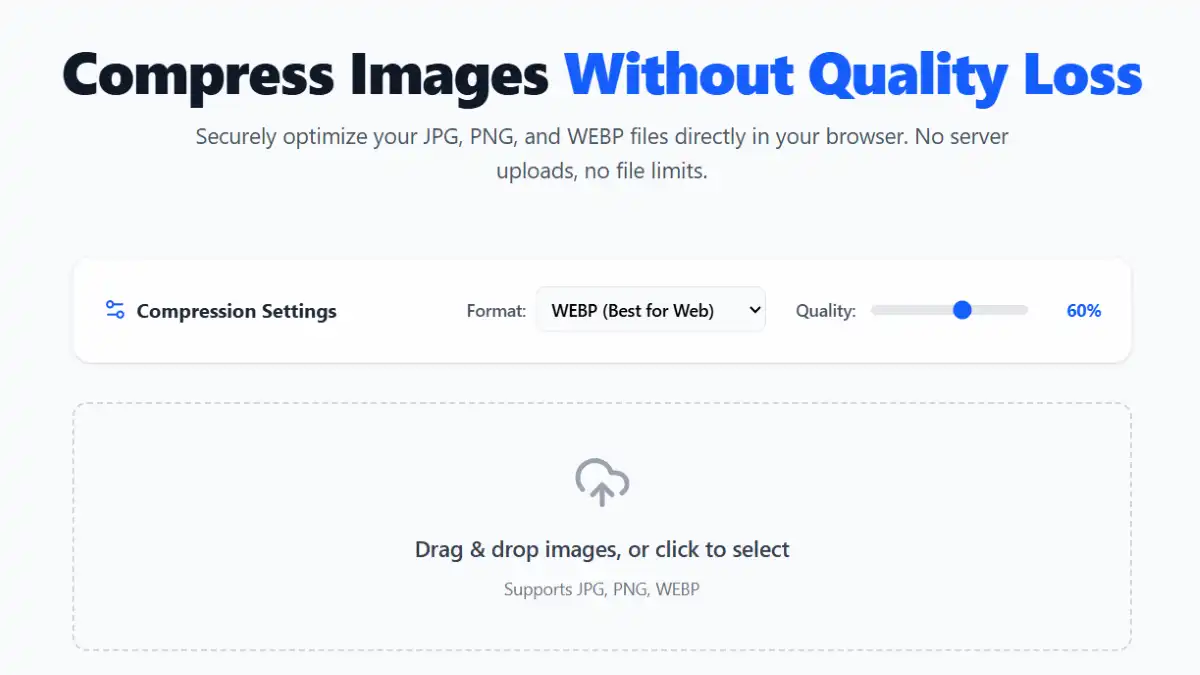
For most websites, a compression quality setting between 75–85% provides the best balance between sharp visuals and smaller file sizes.
Compress Images in Bulk
Optimize your entire image library faster
Compressing images individually wastes time and creates inconsistent optimization settings. Bulk processing allows you to optimize multiple files simultaneously with a single configuration.
Try DigitalDevTools Image Compressor to drag, drop, compress, and convert multiple images at once — directly in your browser with no uploads or server processing.
Verify File Sizes & Visual Quality
Ensure images remain crisp after compression
After compressing your images, inspect them at full size to ensure there are no visible artifacts, blurring, or quality degradation.
Recommended File Size Targets
Test Your Website Performance
Validate optimization improvements
After uploading your optimized images, test your website using Google PageSpeed Insights to measure performance improvements and Core Web Vitals.
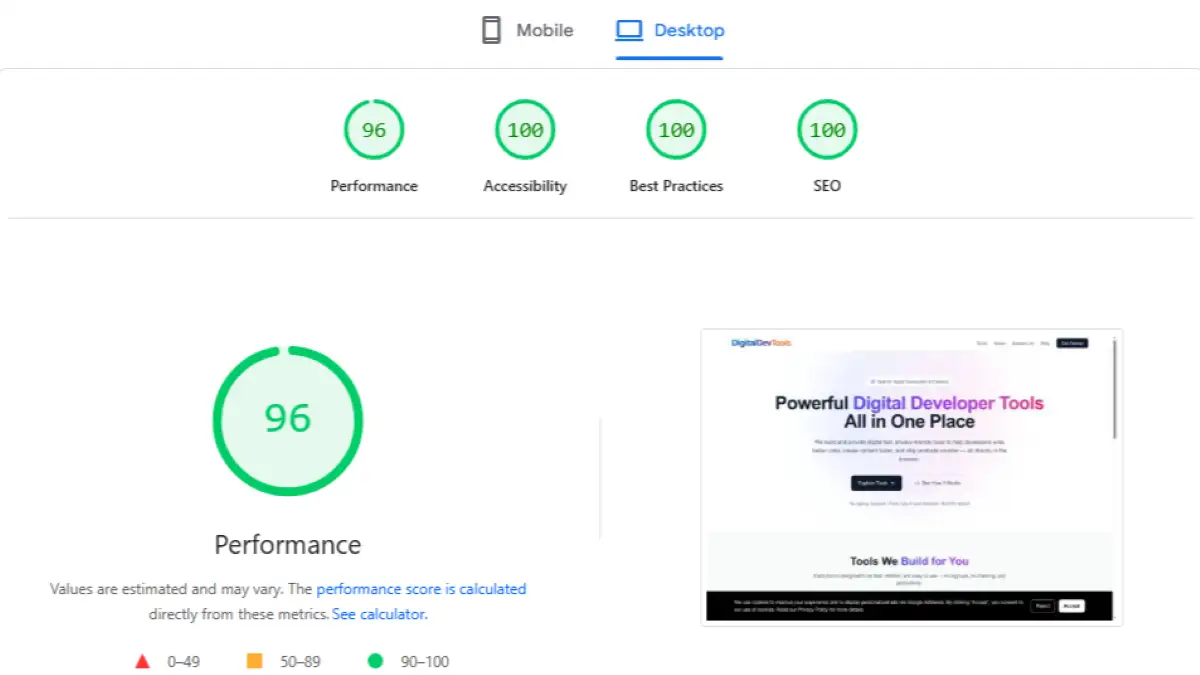
Look for recommendations such as “Serve images in next-gen formats” and “Efficiently encode images”. Once properly optimized, these warnings should disappear or improve significantly.
5 Image Optimization Techniques That Improve SEO
Compression alone is not enough. Proper image SEO helps search engines understand your content while improving page speed and accessibility.
Use Descriptive File Names
Rename generic files like IMG_4823.jpg to meaningful names such as red-running-shoes-nike-air-max.webp to improve image search relevance.
Always Add Alt Text
Alt text improves accessibility and helps search engines understand what your image contains.
Implement Lazy Loading
Use loading='lazy' to defer off-screen image loading and improve initial page speed.
Serve Responsive Images
Use srcset and properly sized images to avoid sending oversized assets to mobile devices.
Use a CDN
Content Delivery Networks reduce latency by serving images from geographically closer servers.
Why Browser-Based Compression Is Better for Privacy
Many traditional image compression tools require users to upload files to external servers before optimization can begin. While convenient, this introduces serious privacy and security concerns — especially when working with confidential, client-sensitive, or unpublished content.
Once files are uploaded, users often have little visibility into how long images are stored, whether they are cached, or who potentially has access to them. This can create unnecessary risks for agencies, businesses, developers, and creators handling private assets.
Local Processing = Complete Privacy
Browser-based tools like DigitalDevTools Image Compressor process images directly on your device using modern browser APIs and JavaScript.
✅ Your images never leave your computer.
Client Work
Protect NDA-protected assets and confidential design files.
Product Launches
Keep unreleased product images completely private.
Personal Data
Avoid uploading screenshots or images containing sensitive information.
For developers, agencies, e-commerce teams, and content creators, browser-based image compression provides the ideal combination of speed, performance, convenience, and privacy.
Typical Image Size Reduction After Optimization
| Image Type | Original Size | Optimized JPG | Optimized WebP | Average Savings |
|---|---|---|---|---|
1 RAW Camera Photo | 18 MB | 450 KB | 310 KB | 98%+ |
2 Unoptimized JPG | 2.1 MB | 280 KB | 195 KB | 86–91% |
3 Large PNG Photo | 4.8 MB | 520 KB | 370 KB | 89–92% |
4 PNG Logo / Graphic | 380 KB | N/A | 85 KB (Lossless) | 78% |
5 UI Screenshot | 1.2 MB | 180 KB | 120 KB | 85–90% |
Important: Actual compression results depend on image dimensions, quality settings, format type, and image complexity. In most cases, converting traditional JPG and PNG files to WebP provides the best balance between visual quality and performance.
Common Questions About Image Compression
Does image compression reduce quality?
Not noticeably. At 75–85% quality, compressed images usually look identical to the original while being dramatically smaller.
What’s the best image format for SEO in 2026?
WebP is the best choice for most websites because it delivers smaller file sizes than JPG and PNG while maintaining excellent visual quality.
Is browser-based compression safe?
Yes. Browser-based tools process images locally on your device, so your files never get uploaded to a server.
Can I compress multiple images at once?
Yes. Tools like DigitalDevTools Image Compressor support bulk compression for faster workflows.
Will compressed images improve SEO?
Yes. Smaller images improve page speed and Core Web Vitals, which positively impact SEO and user experience.
Ready to Compress Your Images?
Image optimization is one of the highest-impact — and most overlooked — improvements you can make to your website. Start now with a free, private, browser-based tool. No sign-up. No file limits.
Compress Images Free →